Don’t have PineConnector yet? You can create one account.
The prerequisites are that you have the code source of your Pine Script strategy and that you are familiar with simple code editing. You should have already configured the PineConnector EA installed on MetaTrader.
In this tutorial, we will automate your strategy to enter and exit long and short trades as they appear in TradingView. It may as well reverse positions from long to short and vice versa if you enable “Close on Reverse” on PineConnector EA in MetaTrader.
The implementation follows the Low-Code approach, using a basic PineConnector syntax. As a user, you will be able to conveniently configure the parameters from your strategy settings.
Basic edits
1. At the very top of your script, locate the Pine Script version and paste below the following highlighted line.
It will pre-fill the alert message field and specify that the content comes from the code.
					//@version=6
//@strategy_alert_message {{strategy.order.alert_message}}
strategy("Automated strategy by sbtnc")
2. Copy below the whole block.
It will expose the inputs in the strategy settings necessary for constructing the basic alert syntax.
					string group = "PineConnector"

string riskTooltip      = "Specifies the order volume. The risk value depends on the \"Volume Type\" selected in your PineConnector EA settings on MetaTrader (lots, dollar amount, and percentage of balance)."

float   riskInput       = input.float (defval = 0.01, title = "Risk",       group = group, minval = 0.01, tooltip = riskTooltip, confirm = true)
string  licenseIdInput  = input.string(defval = "",   title = "License ID", group = group, confirm = true)

// Other inputs...
3. Once again, add the following block below.
It is the required piece of logic that will construct PineConnector syntax with the input values the user has set.
					// @enum Contains fields with PineConnector commands.
enum Command
    long        = "buy"
    short       = "sell"
    exitLong    = "closelong"
    exitShort   = "closeshort"

// @function Generate the alert message built for PineConnector syntax.
//           LicenseID,buy,EURUSD,risk=1
// @returns  string
generateAlertMessage(Command command) =>
    // @variable The chart symbol.
    var _symbolStr = syminfo.ticker

    str.format(
         "{0},{1},{2},risk={3},comment={4}{5}",
         licenseIdInput, str.tostring(command), _symbolStr, riskInput
         )
4. Locate all your strategy.*() commands and add the relevant lines.
It specifies the alert message that will fire when the order executes in TradingView.
					// Commands for longs

strategy.entry(
     // arguments...
     alert_message = generateAlertMessage(Command.long)
     )

strategy.exit(
     // arguments...
     alert_message = generateAlertMessage(Command.exitLong)
     )

// Commands for shorts

strategy.entry(
     // arguments...
     alert_message = generateAlertMessage(Command.short)
     )

strategy.exit(
     // arguments...
     alert_message = generateAlertMessage(Command.exitShort)
     )
5. Save your changes and add the strategy to your chart.
Strategy settings
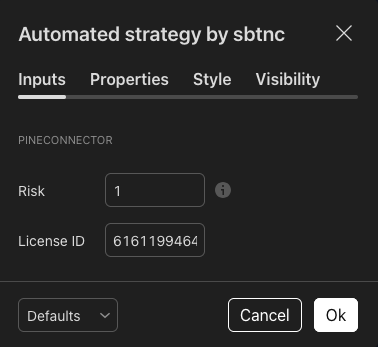
6. Head to the strategy settings and set the risk and license ID.
The risk value (lots, dollar amount, or percentage of balance) depends on the “Volume Type” you select on PineConnector EA in MetaTrader.
Alert creation
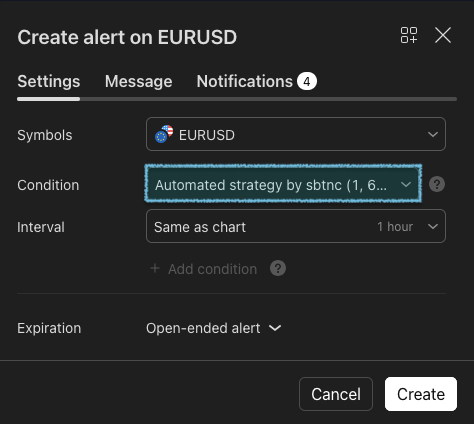
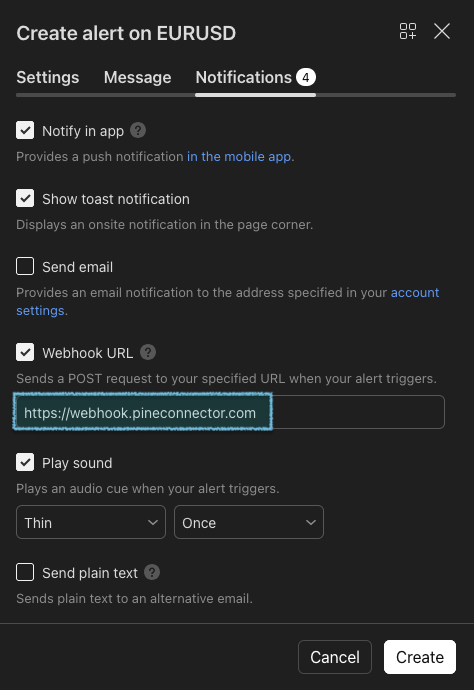
7. Once it’s done, you can now create your alert. Select the strategy as the condition and fill in the webhook URL.
Every time you change the strategy settings, you should delete the alert and create a new one.